Viewers scroll right past static clips when sound is muted. Learning how to add animated subtitles to video automatically keeps their attention focused on every sentence. In GrepCut Studio, you can generate high-accuracy captions completely free using two distinct workflows: high-speed cloud transcription with your own API key, or a private on-device Whisper model that runs directly in your web browser with zero setup.
Two Ways to Generate Free Auto Subtitles
Different editing workflows call for different transcription approaches. GrepCut Studio provides two flexible methods so you never hit artificial usage caps or paywalls:
- Cloud Transcription via BYOK (Bring Your Own Key): Connects to Groq's high-speed cloud infrastructure to run Whisper Large V3 Turbo. This method transcribes long audio in seconds with state-of-the-art multilingual accuracy. Groq provides generous free-tier API credits, making it ideal for daily batch production.
- Local On-Device Transcription (ONNX): Executes directly inside your browser via WebAssembly and ONNX runtime. It requires no API key, no sign-up, sends zero bytes of audio to any external server, and provides completely unlimited English transcription.
Both options feed directly into GrepCut Studio's animated subtitle engine, allowing you to style, re-time, and burn dynamic captions onto your clips.
Method 1: Cloud Transcription via Groq (BYOK)
If you need maximum transcription accuracy across multiple languages or fast turnaround on longer takes, using your own Groq API key is the best choice.
Step 1: Add Footage to the Timeline
Drag your video clip from your computer onto the timeline track. Click on the video or audio clip to select it, then open the Transcription panel on the right sidebar.
Step 2: Obtain a Free Groq API Key
GrepCut Studio uses a BYOK model so you never have to pay a markup for cloud compute. To grab your key:
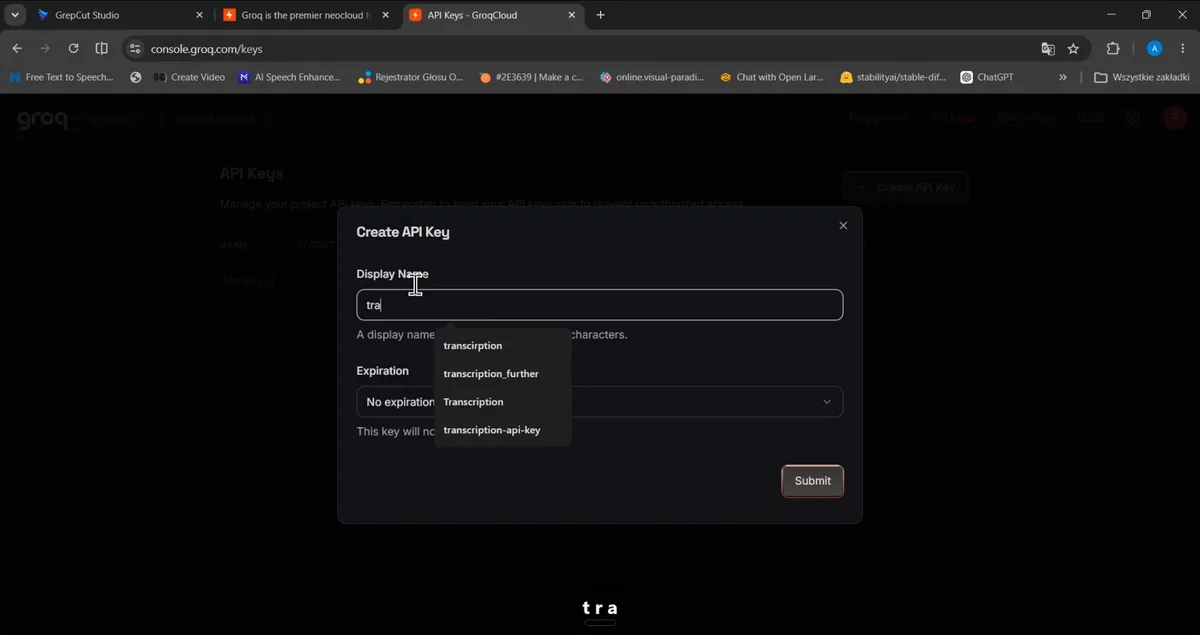
- Navigate to the GroqCloud Console in a new browser tab.
- Sign in or create a free account.
- Click Create API Key, enter a display name (for example,
grepcut-transcription), and click Submit. - Copy the secret API key to your clipboard.
Step 3: Paste Key and Transcribe with Whisper Large V3 Turbo
Return to GrepCut Studio and toggle Use your own API key to active. Select the Groq tab, paste your key into the field, and click Save key (you can click Test to confirm the connection).
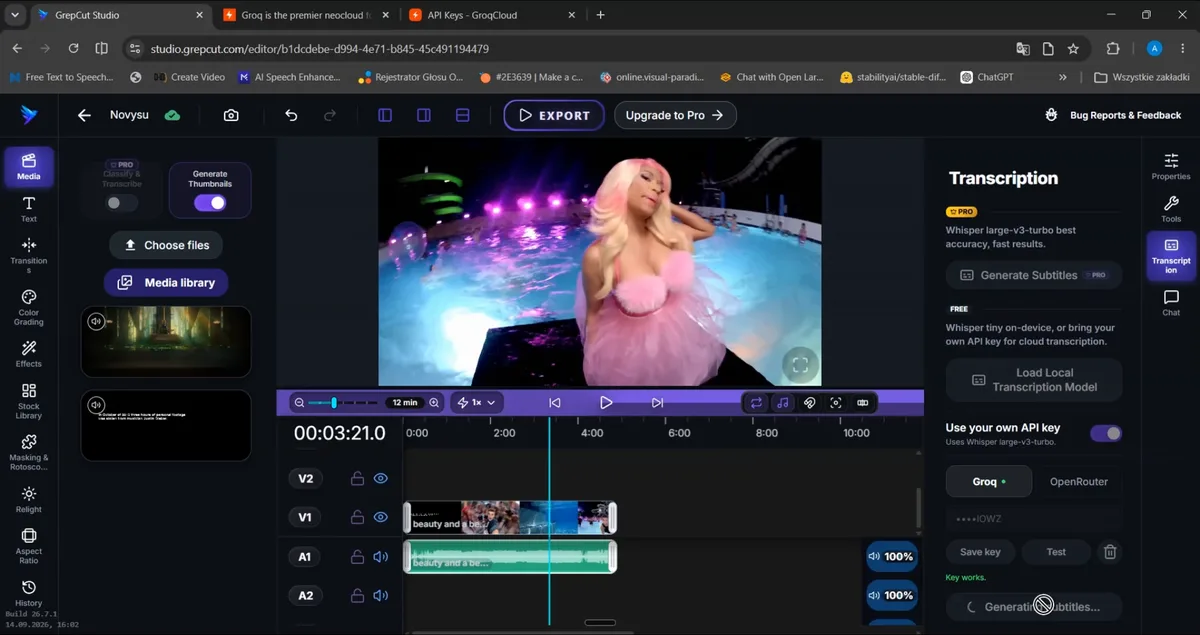
Click Generate with Groq key. GrepCut Studio streams your audio to Whisper Large V3 Turbo and returns synchronized subtitle timestamps in just a few seconds.
Once transcription completes, the transcript is automatically saved alongside the media item in your Media library. If you clear the timeline or build alternative cuts later, you can reuse the existing transcript instantly without re-processing.
Method 2: 100% Private On-Device Transcription (Local ONNX)
When editing sensitive footage, working without an internet connection, or simply wanting zero configuration, the local in-browser model offers a seamless solution.
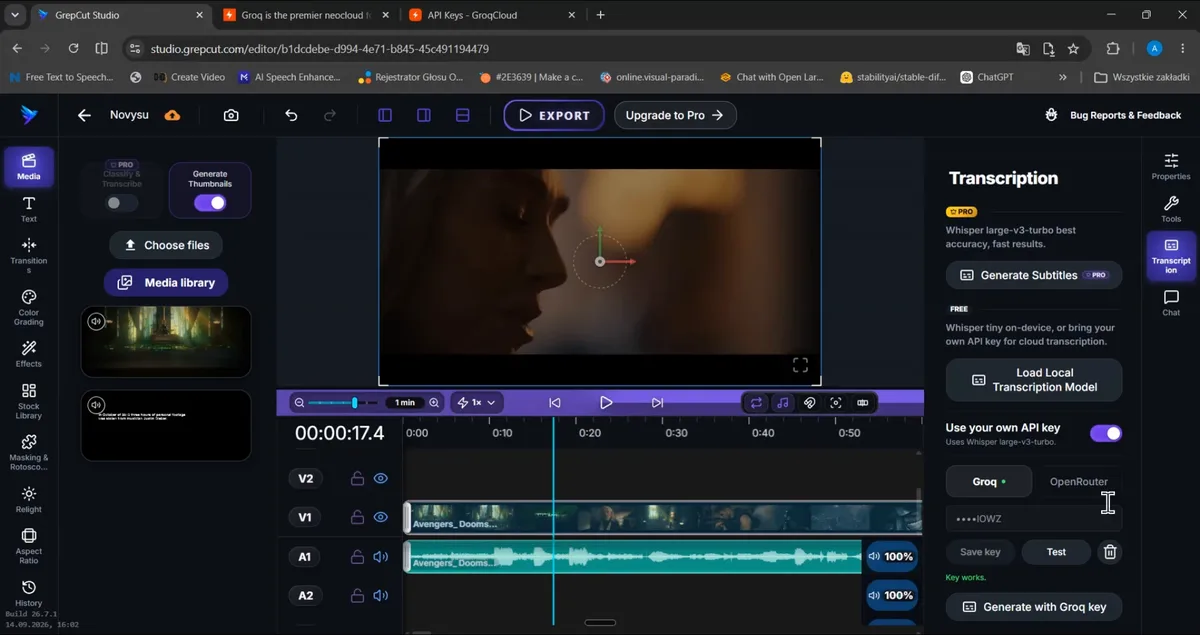
Step 1: Select Local Transcription
Select your video clip on the timeline, open the Transcription panel, and click Load Local Transcription Model.
Step 2: In-Browser Inference
The lightweight Whisper ONNX model downloads once and caches directly in your browser storage. It processes English audio locally using your computer's hardware. No audio leaves your machine, ensuring full data privacy and zero API rate limits.
Step 3: Add Subtitles to Timeline
When transcription finishes, review the styling and click Add subtitles. GrepCut Studio generates distinct subtitle clips placed on dedicated subtitle tracks above your video.
Subtitle Animation Presets and Visual Styling
Raw captions look flat. Modern social video on TikTok, Instagram Reels, and YouTube Shorts demands kinetic typography that highlights words as they are spoken.
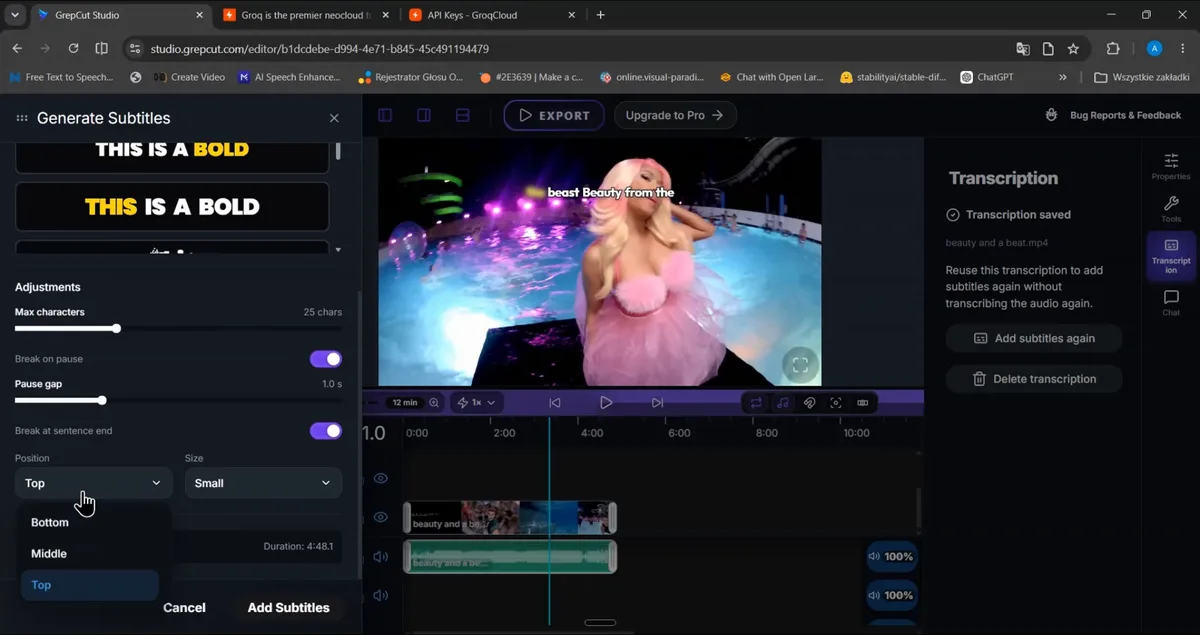
Before or after generating subtitles, you can customize the caption design:
- Animation Presets: Choose dynamic highlight styles such as Lime Box (a vibrant background pill that follows active speech), Bold Yellow, or high-contrast outlined fonts.
- Screen Position: Set position to Bottom, Middle, or Top so subtitles never collide with platform UI elements like TikTok captions or Shorts interaction buttons.
- Pacing & Breaks: Adjust Max characters (typically 20 to 28 characters per line) and enable Break on pause (such as 1.0s gaps) and Break at sentence end. Keeping subtitle chunks short ensures viewers read at speaking pace rather than skimming ahead.
If you combine animated captions with visual cutaways, explore our B-roll pacing guide to maintain peak audience retention.
Fine-Tuning Text and Word-Level Timing
Automatic speech recognition is accurate, but proper nouns, slang, or fast speech occasionally need quick touch-ups. GrepCut Studio features an integrated word-timing inspector.
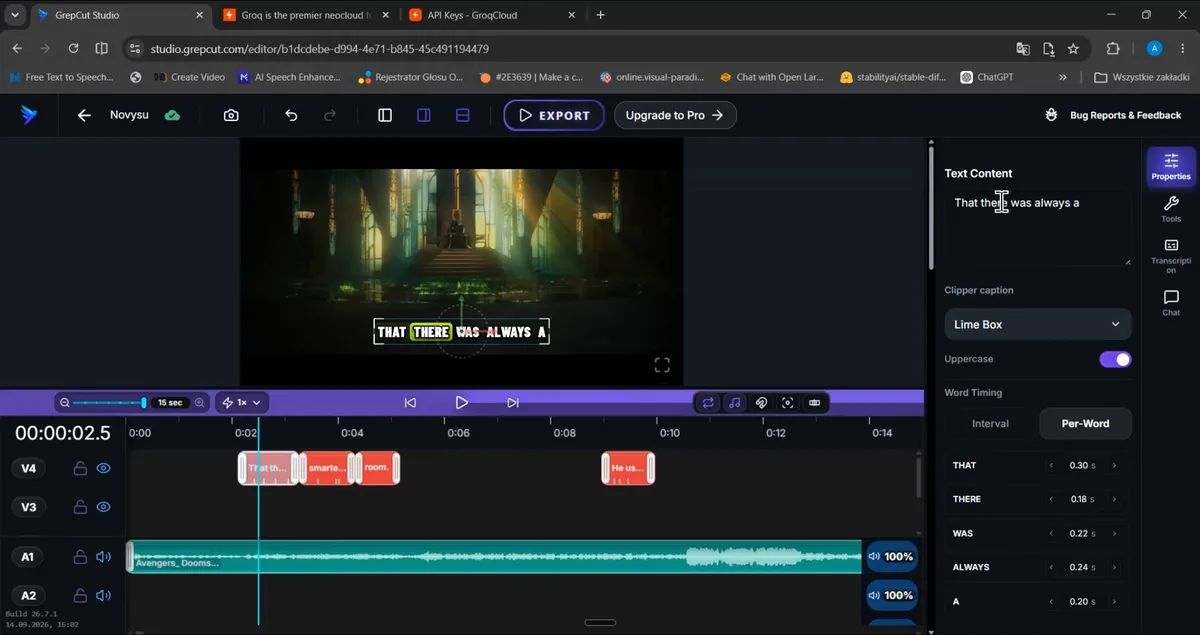
Select any subtitle clip on the timeline track to open the Properties panel:
- Edit Text Content: Correct any misheard words directly in the Text Content field. The timing of existing words remains intact.
- Per-Word Timing Calibration: Switch from Interval to Per-Word mode. You will see every word listed with its exact duration in seconds (for example,
THAT: 0.30s,THERE: 0.18s,WAS: 0.22s). - Nudge Word Sync: Click the left and right arrows next to any word's timestamp to nudge when the highlight triggers. This guarantees that karaoke-style animated highlights snap onto syllables with 100% precision.
Exporting Your Subtitled Video in High Definition
Once your animated subtitles are styled and aligned, finalize your project in the Export Center.
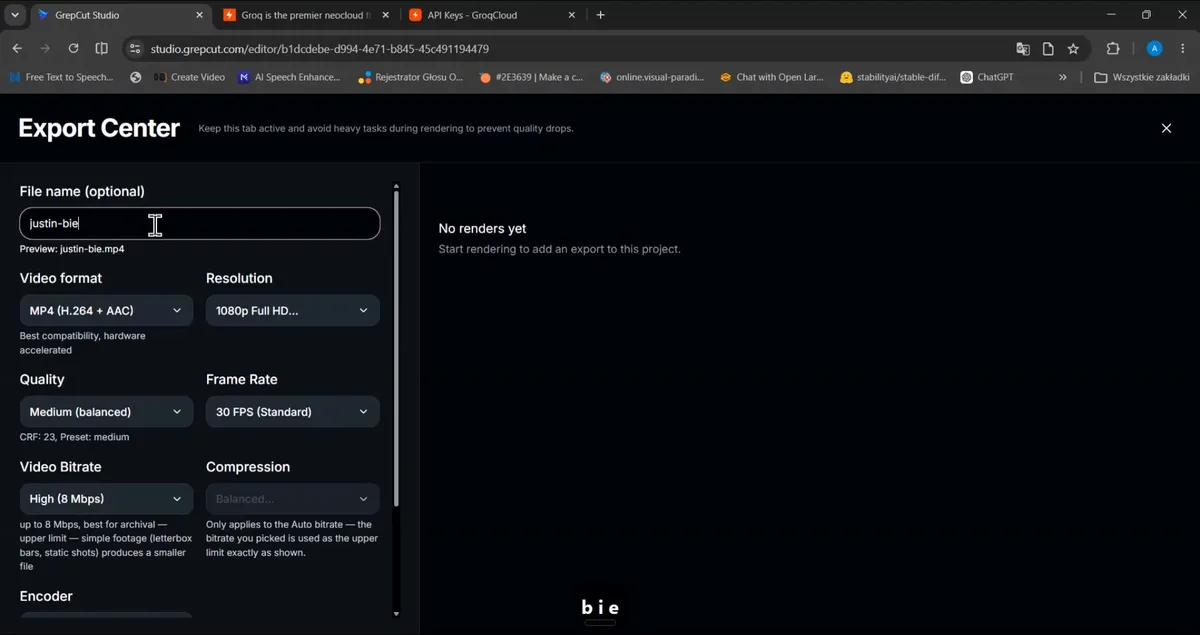
- Click the Export button in the top navigation header.
- Set Video format to MP4 (H.264 + AAC) for universal compatibility across mobile devices and social networks.
- Select Resolution (such as 1080p Full HD).
- Set Frame Rate to 30 FPS (Standard) and choose Video Bitrate of High (8 Mbps) to keep sharp visual clarity without oversized files.
- Click Render to burn the animated subtitles into the exported video.
Frequently Asked Questions
Is automatic subtitle generation in GrepCut Studio free?
Yes. You can transcribe videos completely free using the built-in local ONNX model directly in your browser, or connect a free Groq API key to run Whisper Large V3 Turbo with zero subscription fees.
Does the local transcription model upload my video to the cloud?
No. The local model runs entirely inside your web browser using client-side WebAssembly and ONNX. Your audio and video files never leave your computer.
Can I customize the subtitle animation colors and fonts?
Yes. You can pick from built-in animation presets like Lime Box, change font sizes, toggle uppercase mode, adjust screen positioning, and customize word highlight colors in the Properties inspector.
How do I fix a word that the AI transcribed incorrectly?
Click the subtitle clip on the timeline and update the spelling in the Text Content field within the Properties panel. You can also fine-tune individual word durations in Per-Word timing mode.
Open GrepCut Studio in your browser to start adding animated subtitles to your videos today.
For additional media workflows before or after captioning, explore our browser-based tools and video converters.
GrepCut
Author of this article